

Overview
You can now create custom tags and assign them to individual survey responses directly from the Response Feed. This turns a stream of open-ended text into structured data, making it easier to track feature requests, spot UX friction, and quantify qualitative feedback.
For setup steps, tagging in the feed, and best practices, see the Response Tags documentation.
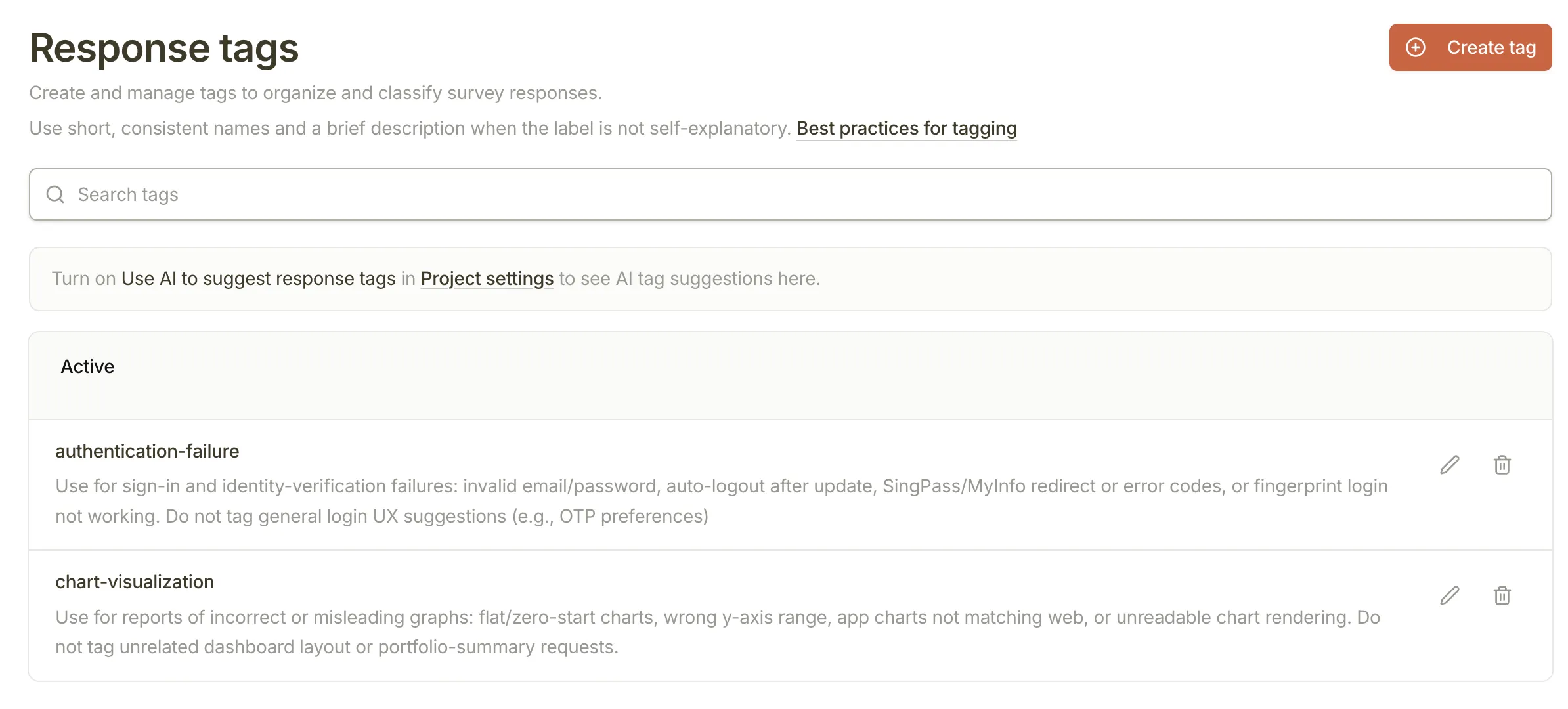
Response Tags page
What’s New
- Response Tags management: Create, edit, and delete tags from a new dedicated page in the sidebar.
- Inline tagging: Add or remove tags on any response card in the All Responses feed without leaving the page.
- Visual indicators: Tags appear as badges on the response cards, so you can see themes at a glance.
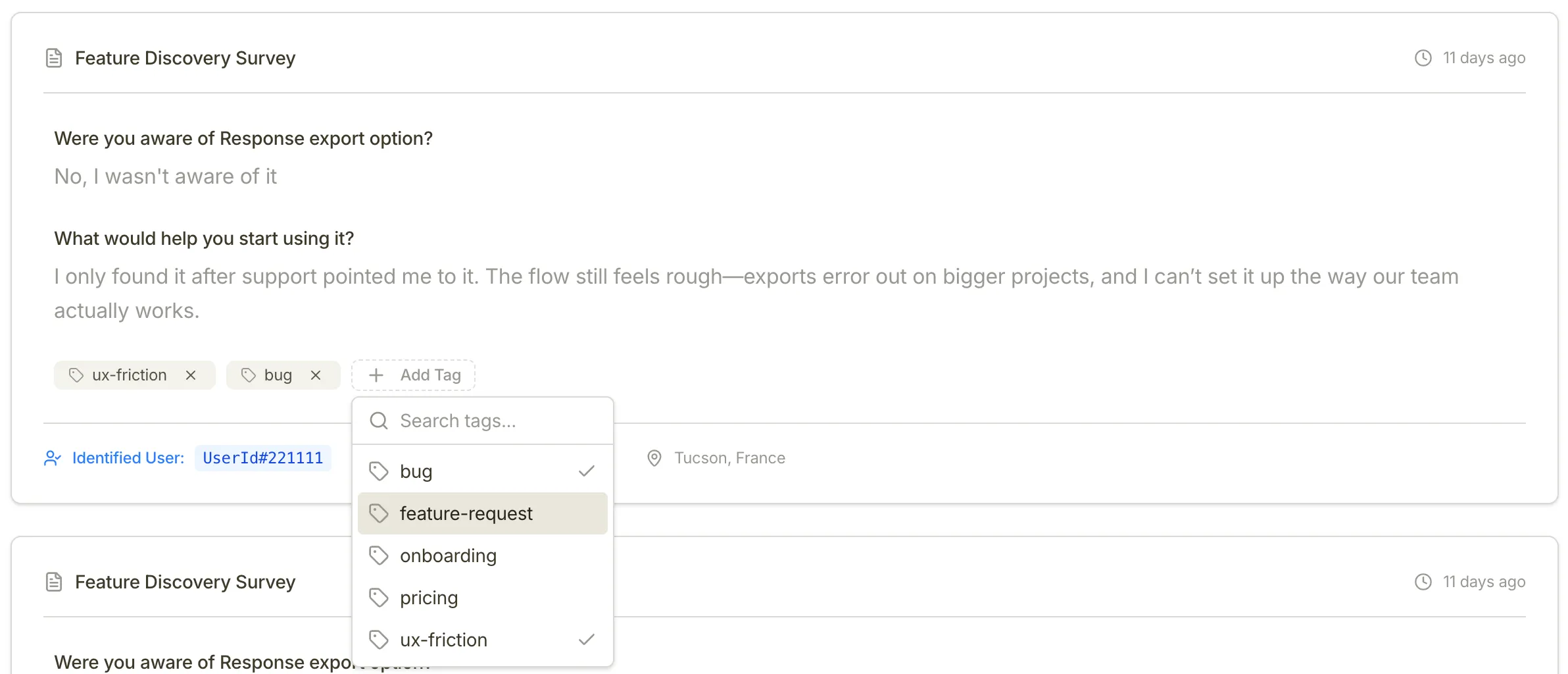
Assigning a tag to a survey response in the Response Feed
When to use it
If you run open-ended surveys (like “How can we improve?” or “What’s missing?”), the answers are valuable but hard to count. Use tags to categorize those answers as they come in.
Instead of remembering that “a few people asked for dark mode,” you can tag those responses with feature-request and dark-mode. This sets the foundation for upcoming features that will let you filter the feed and view analytics based on these tags.
What this means for you
- Faster triage: PMs and researchers can quickly categorize incoming feedback during their daily or weekly review.
- Shared vocabulary: The whole team can use the same set of tags to describe user pain points and requests.
- Future-proofing: Tagging responses now means your data will be ready when we roll out tag-based filtering and AI-assisted auto-tagging soon.
Feedback? Tell us via in-app chat or reply to your onboarding email.