
User Segments
Segments are named audiences you define from user attributes. Once created, a segment can be attached to any survey so only users whose traits match are eligible to see it. The same segment works across multiple surveys, so you maintain plan-, role-, or cohort-based rules in one place. For the full Targeting tab tour (URLs, geo, device filters, and how segments combine in an AND chain), start with Audience Targeting.
Available on Core and Pro.
Before you start
Section titled “Before you start”Segments require two things to be in place before they work:
-
User traits sent via
identify. Segment rules match against the attribute keys and values you pass in the SDKidentifycall. See Identifying Users for syntax and examples. -
“Only show to identified users” enabled on the survey. The Segment control on the Targeting tab only appears when this option is on. Make sure
identifyis called on each visit where you want targeting to run so traits stay current.
Create a segment
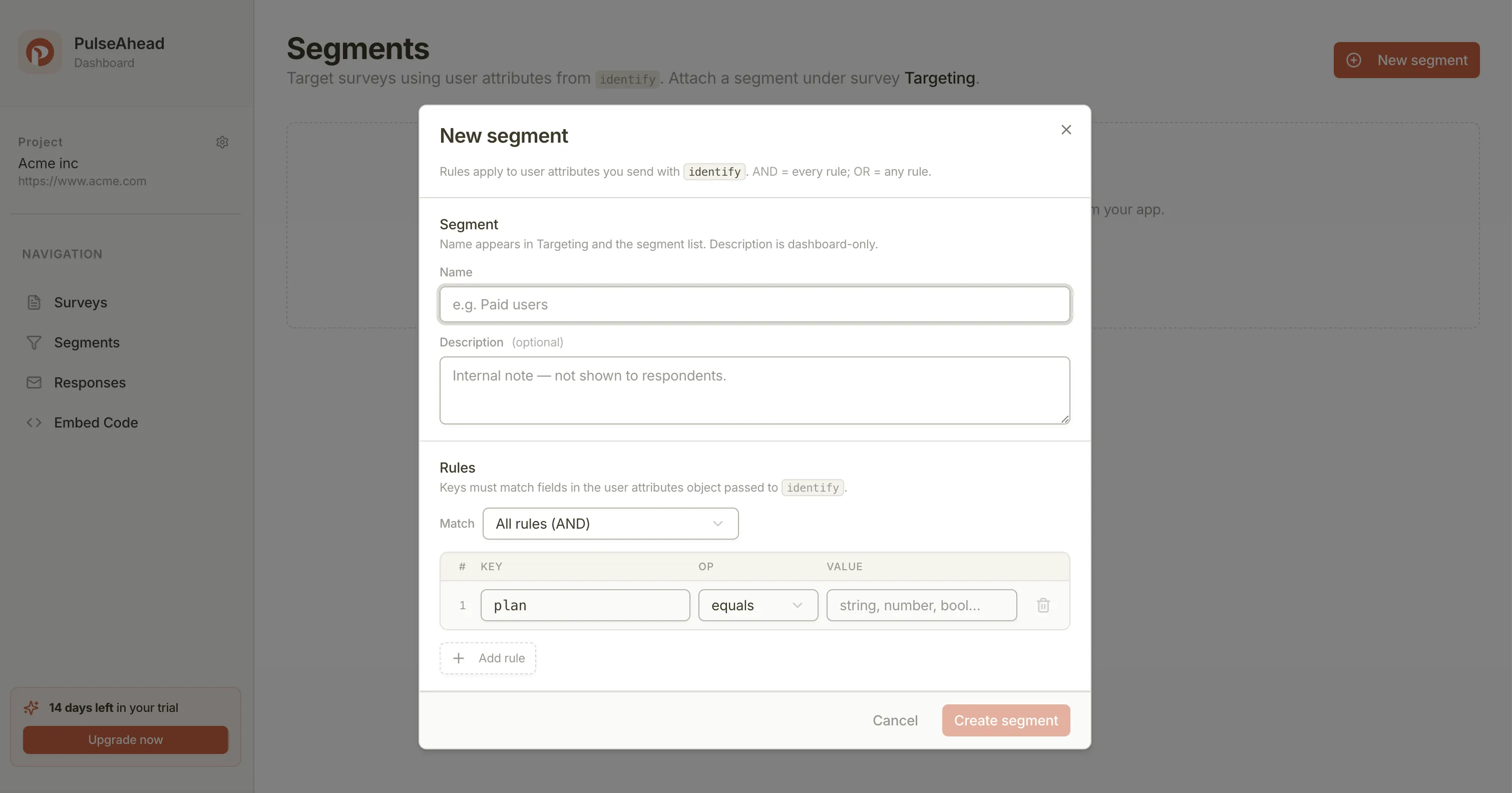
Section titled “Create a segment”- Open your project in the Pulseahead dashboard and go to Segments.
- Click New segment.
- Enter a Name. This appears in the survey Segment dropdown. Add an optional Description for your team — respondents never see it.
- Under Match, choose how multiple rules combine:
- All rules (AND) — every rule must match
- Any rule (OR) — at least one rule must match
- For each rule, set the attribute key, an operator, and a value.
- Click Add rule to add more conditions. Use the trash icon to remove a rule when you have more than one.
- Save the segment.
Operators
Section titled “Operators”| Operator | Use for |
|---|---|
| equals | Exact match on a string, number, or boolean |
| not equals | Exclude a specific value |
| greater than | Numeric comparison, e.g. session_count > 10 |
| less than | Numeric comparison, e.g. days_since_signup < 7 |
| contains | Substring match on a string value |
In the value field, enter text, a number (digits only), or true / false for booleans. Use the same key names and value types you send from your app so evaluation stays predictable.
Example segment rules
Section titled “Example segment rules”Pro plan users only
planequalspro
New users in their first week
days_since_signupless than7
Admins on the enterprise plan
- Match: All rules (AND)
roleequalsadminplanequalsenterprise
Attach a segment to a survey
Section titled “Attach a segment to a survey”- Open the survey and go to the Targeting tab.
- Under Audience, open the Segment dropdown.
- Select your segment. To use no segment filtering, leave it set to None.
Use Manage segments in the dropdown to open the segment list and adjust definitions without losing your place.
How segments combine with other targeting rules
Section titled “How segments combine with other targeting rules”A segment is one gate in a larger AND chain. A visitor must also pass minimum sessions, URL patterns (if any), country, device filters, and any other rules configured on the Targeting tab. Sampling, when enabled, runs after all of these checks.
For a full overview of how all targeting rules interact, see Audience Targeting.
Next steps
Section titled “Next steps”- Control when surveys appear and how often in Behavior & Frequency
- Review all targeting options together in Audience Targeting
For release notes on this feature, see Segments for attribute-based survey targeting.