
Behavior & Frequency
Behavior and frequency settings control when a survey is shown to a qualifying visitor and how often the same person can see it. These settings work alongside the audience and targeting rules you configure on the Targeting tab; see Audience Targeting for how URL rules, traits, segments, and sampling combine before behavior runs.
Display timing
Section titled “Display timing”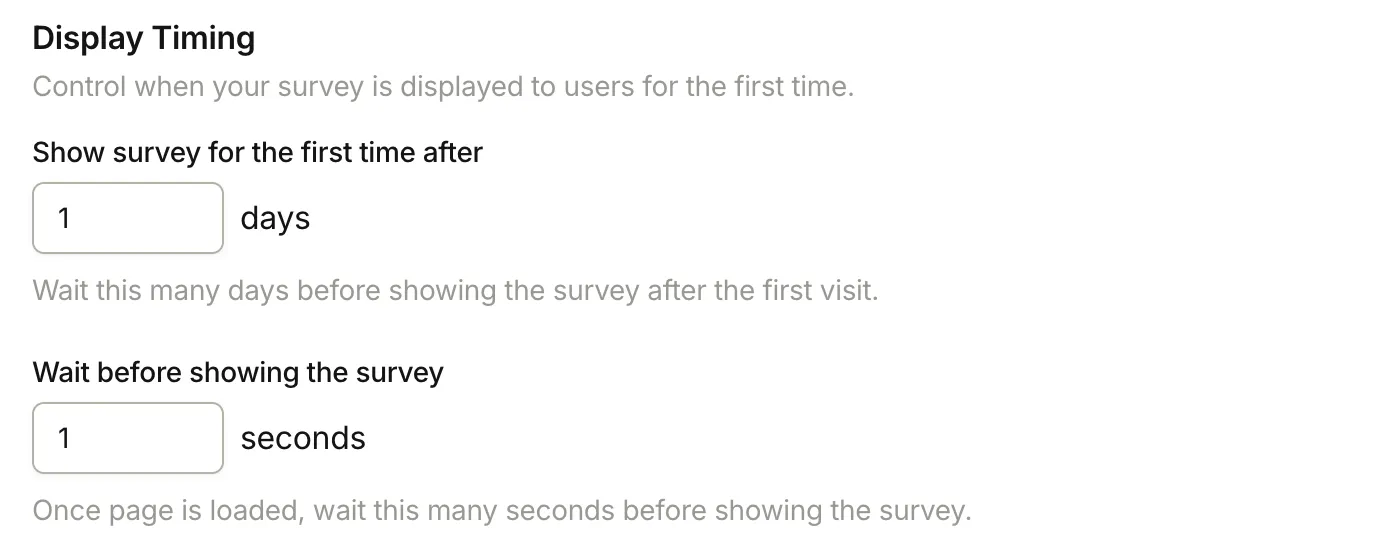
Delay before showing
Section titled “Delay before showing”Sets how many seconds after page load to wait before showing the survey to a qualifying visitor. Accepts 0-30 seconds.
A small delay (10-20 seconds) filters out visitors who land and immediately leave, so you’re more likely to reach someone who is actively using the page.
First-time delay
Section titled “First-time delay”Sets how many days after a visitor’s first seen visit to wait before the survey is eligible to appear for the first time. Accepts 0-30 days.
Use this for onboarding surveys where you want the user to have some product experience first. For example, set to 7 days for a “first week” check-in.
Trigger mode
Section titled “Trigger mode”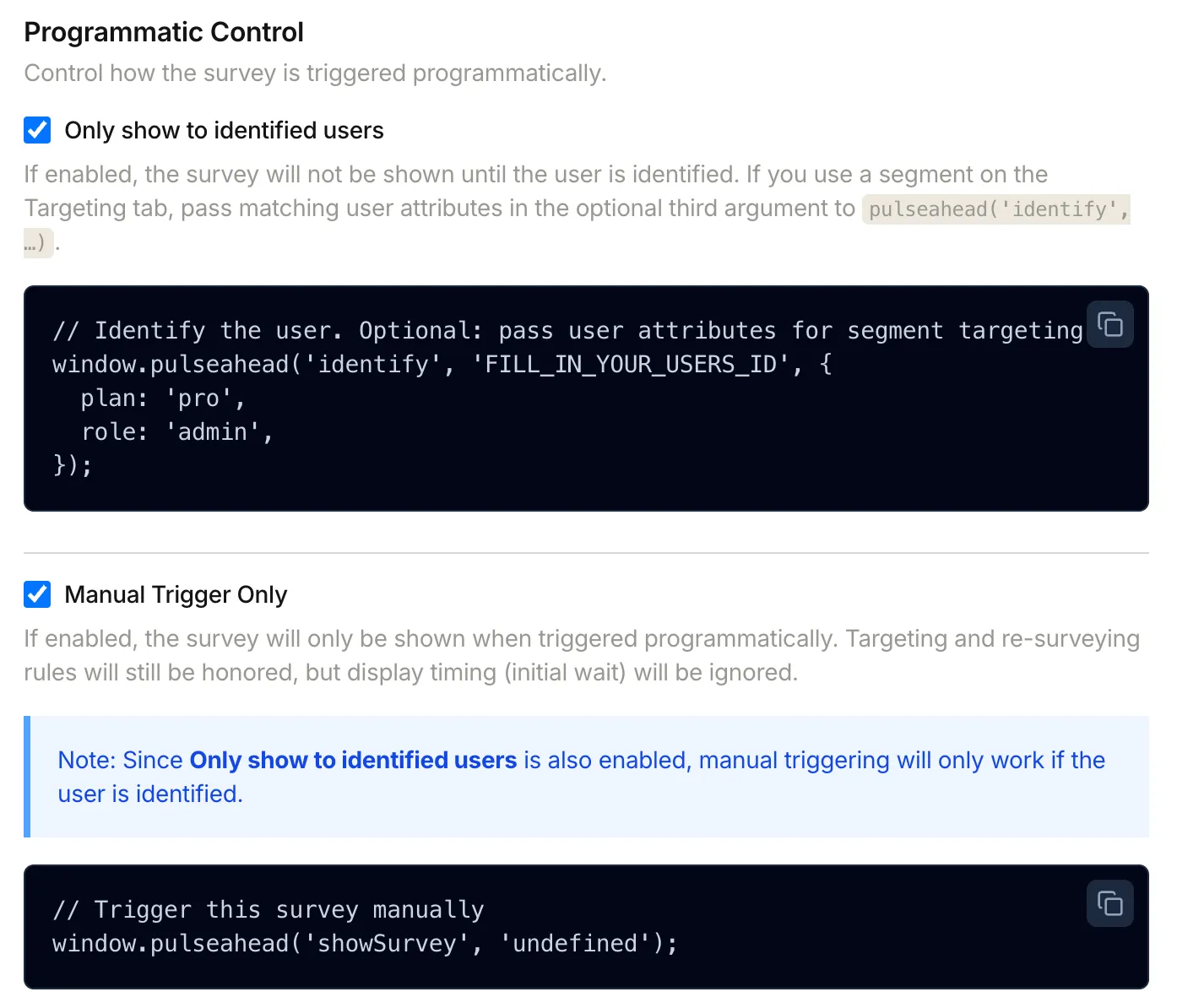
Automatic (default)
Section titled “Automatic (default)”The survey runs automatically when a visitor meets all targeting and timing criteria. No code changes required.
Manual trigger only
Section titled “Manual trigger only”The survey does not run automatically. Your app must call window.pulseahead("showSurvey", "SURVEY_ID") to show it.
Use manual triggers for action-based moments that URL rules cannot capture, such as after a checkout completes, a project is saved, or a feature is used for the first time.
Frequency controls
Section titled “Frequency controls”Only show to identified users
Section titled “Only show to identified users”When enabled, the survey is shown only to visitors for whom identify has been called in the current session. Anonymous visitors are skipped.
Required if you want to use a Segment on the Targeting tab.
Global project cooldown
Section titled “Global project cooldown”Set at the project level in project settings. After a visitor sees any survey in the project, they are blocked from seeing another survey until the cooldown period expires.
This prevents survey fatigue when you have multiple surveys running at the same time.
Ignore global project cooldown
Section titled “Ignore global project cooldown”Available on Core and Pro.
Enable this on high-priority surveys so they can still surface even when the global cooldown has not expired for that visitor.
Example use case: A cancellation or exit intent survey should run regardless of whether the user recently completed a different survey.
Re-survey settings
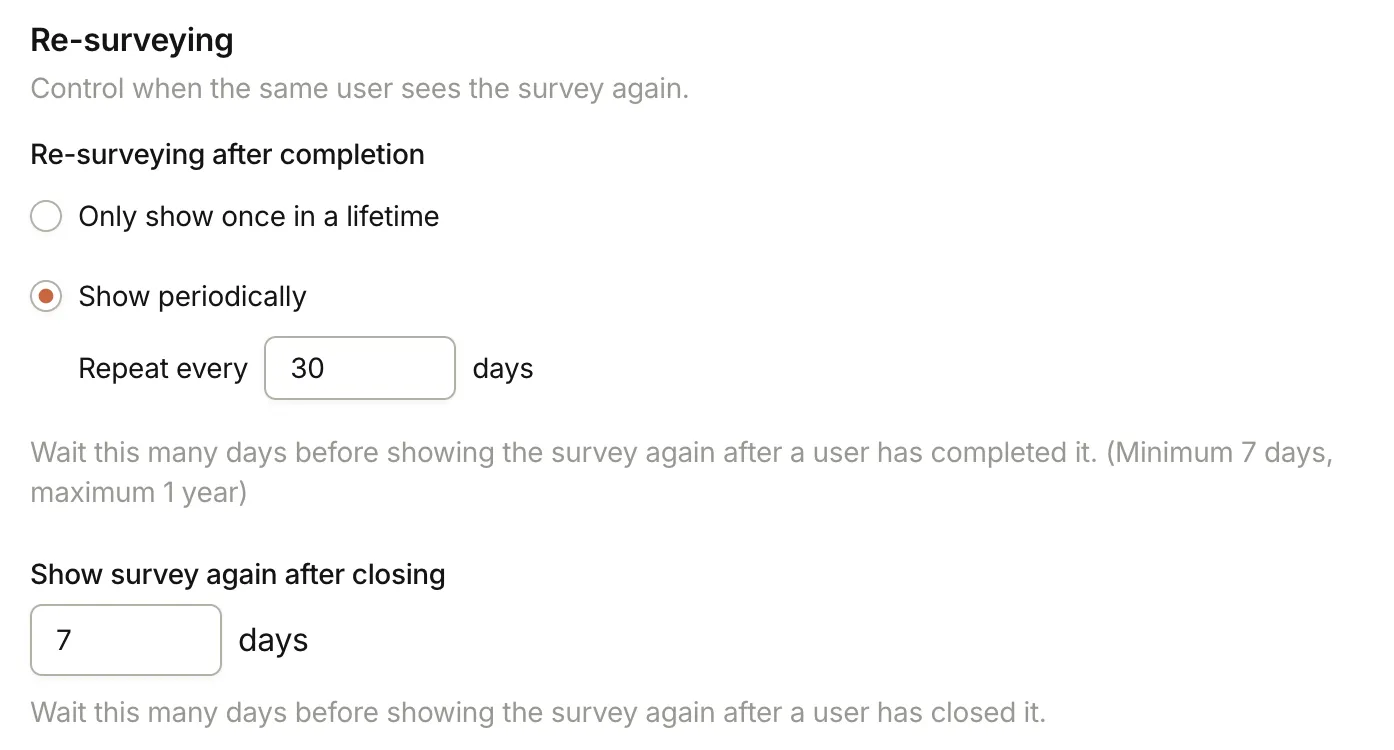
Section titled “Re-survey settings”Controls what happens after a visitor interacts with the survey.
After completing the survey
Section titled “After completing the survey”| Option | Behavior |
|---|---|
| Only show once in a lifetime | The visitor never sees this survey again after completing it |
| Show periodically | The visitor can see the survey again after a set interval |
When Show periodically is selected, set the Repeat every interval (7-365 days) between completions.
After closing without completing
Section titled “After closing without completing”Show survey again after closing sets how many days to wait before the same visitor can be prompted again if they dismissed the survey without finishing. Accepts 1-100 days.
Next steps
Section titled “Next steps”- Define who qualifies for a survey in Audience Targeting
- Build attribute-based audiences in User Segments
- Design survey steps in Steps & Question Types