
Ways to Create a Survey
Pulseahead gives you four ways to start a survey. Each one is designed for a different situation, from getting full journey coverage fast to building a custom one-off poll.
To get started, go to Surveys and click Create Survey.
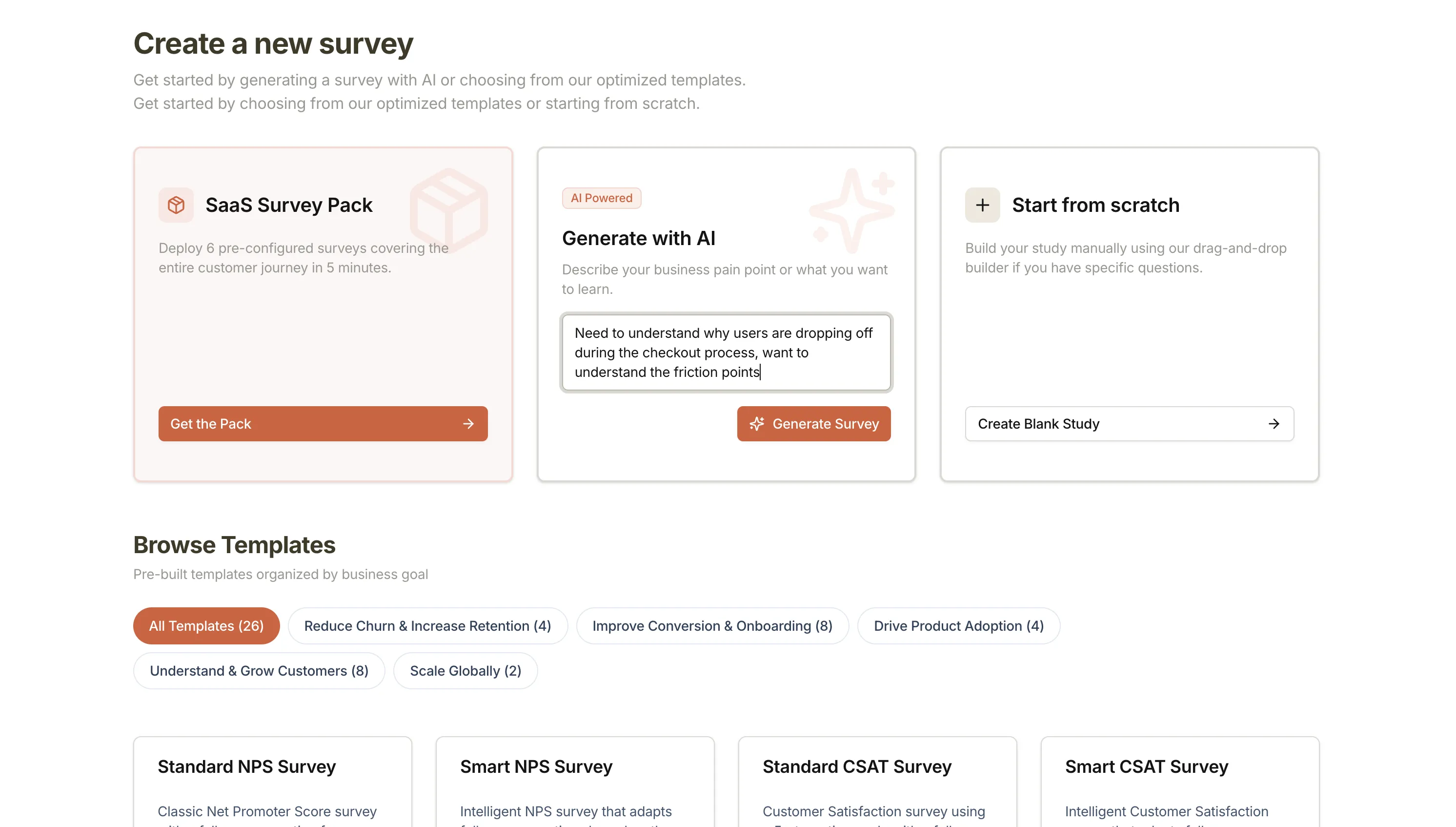
SaaS Survey Pack
Section titled “SaaS Survey Pack”The SaaS Survey Pack sets up a coordinated collection of surveys covering the full customer journey in a single guided flow. It includes pre-built targeting, adaptive branching, and question defaults for common SaaS metrics.
Best for: Teams who want to cover the whole product journey quickly, without designing each survey individually.
How to set it up:
- Click Get the Pack on the SaaS Survey Pack card.
- Follow the setup flow to configure and publish the pack.
See SaaS Survey Pack overview for what’s included and how the surveys work together.
Templates
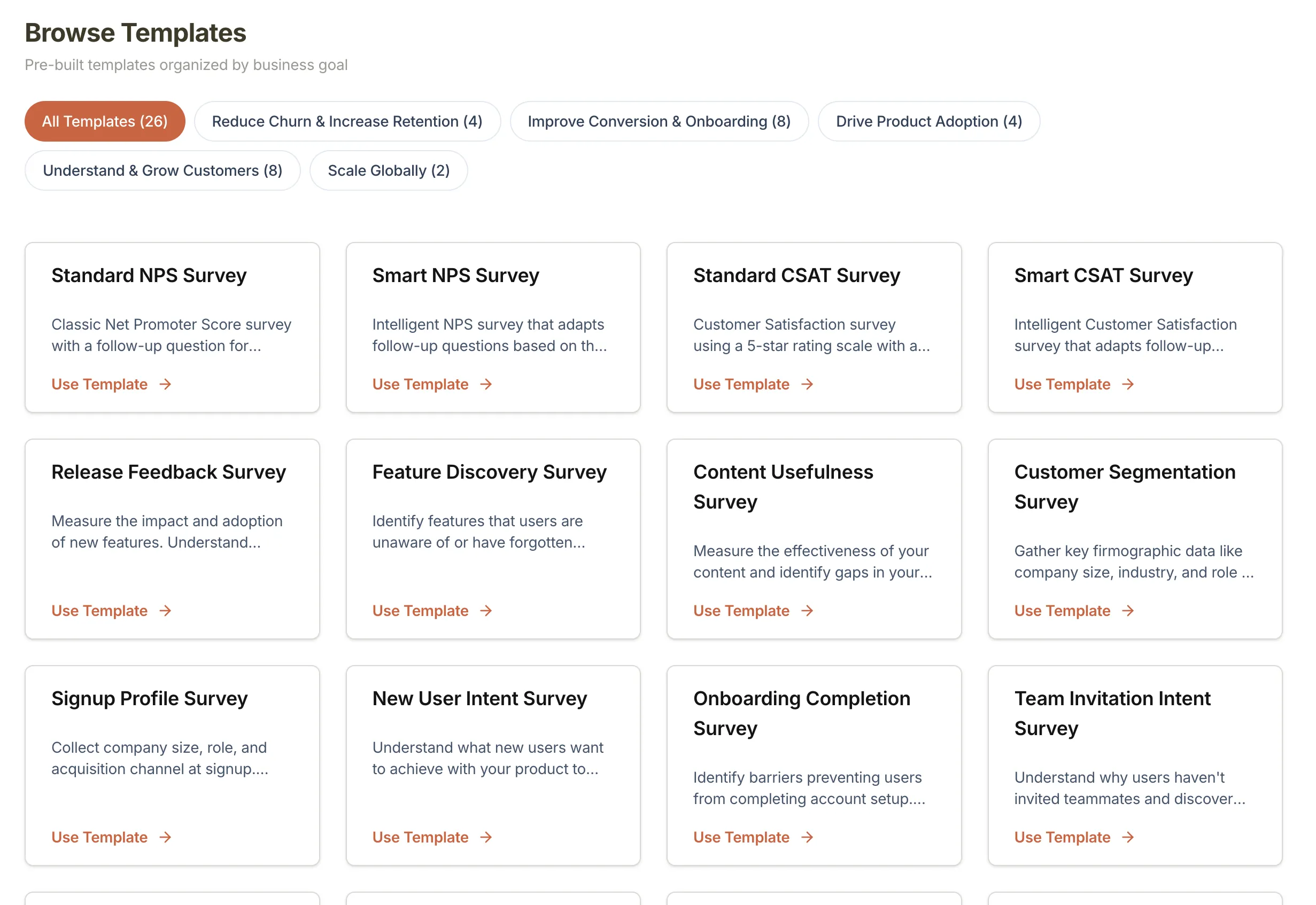
Section titled “Templates”Templates come pre-loaded with questions and adaptive patterns for common SaaS use cases, including NPS, product-market fit, churn, and conversion.
Best for: Measuring standard metrics without starting from scratch.
How to use a template:
- Scroll to Browse Templates in the Create a new survey screen.
- Pick a category (for example, Reduce Churn or Improve Conversion).
- Open a template to review its steps and default settings.
- Select the template to open it in the survey editor.
You can edit any step, label, or targeting rule after selecting a template.
Generate with AI
Section titled “Generate with AI”Describe what you want to learn and Pulseahead generates a draft set of steps (questions and content screens) for you to review and edit.
Best for: When you have a specific research goal and want a head start on question writing.
How to generate a survey:
- In the Generate with AI card, type a description of what you want to learn. Example: “Understand why users skip the new export flow.”
- Click Generate Survey.
- Review the generated steps in the editor and make any changes.
- Click Save Changes to create the survey in your project.
What AI does not configure: AI creates steps only. It does not add Adaptive Flow or branching rules. Appearance, Behavior, and Targeting all use default values until you update them in their respective tabs.
Start from Scratch
Section titled “Start from Scratch”Opens an empty survey editor so you can build exactly what you need.
Best for: Unique flows, one-off polls, or when you already know the exact question sequence.
How to create a blank survey:
- Click Create Blank Study on the Start from scratch card.
- In the editor, click Add Step to add your first question or screen.
Choosing the right starting point
Section titled “Choosing the right starting point”| Starting point | Speed | Customization | When to use |
|---|---|---|---|
| SaaS Survey Pack | Fastest | Pack defaults | Full journey coverage with guided setup |
| Templates | Fast | Medium | Standard SaaS metrics |
| Generate with AI | Fast | High | Specific research goals; you add branching later |
| Start from Scratch | Manual | Full | Custom flows or simple polls |
Next steps
Section titled “Next steps”Once your survey is open in the editor, add and configure steps, then set up Adaptive Flow if you need branching logic.