
Audience Targeting
Audience targeting controls who sees a survey and where. Every active rule you configure must pass before a visitor is offered the survey. Understanding how these layers stack helps you design targeting that captures high-quality feedback without over-surveying.
How targeting rules combine
Section titled “How targeting rules combine”Pulseahead evaluates all active targeting rules using AND logic. A visitor must satisfy every rule you have configured: minimum sessions, URL patterns (if any), segment (if set), country, device filters, and so on.
Sampling, when enabled, runs last. It applies only to visitors who already passed every other check, so it throttles volume without weakening your other gates.
This means adding more rules narrows your audience further. If you want to reach a broad audience, leave optional filters unset.
Targeting settings
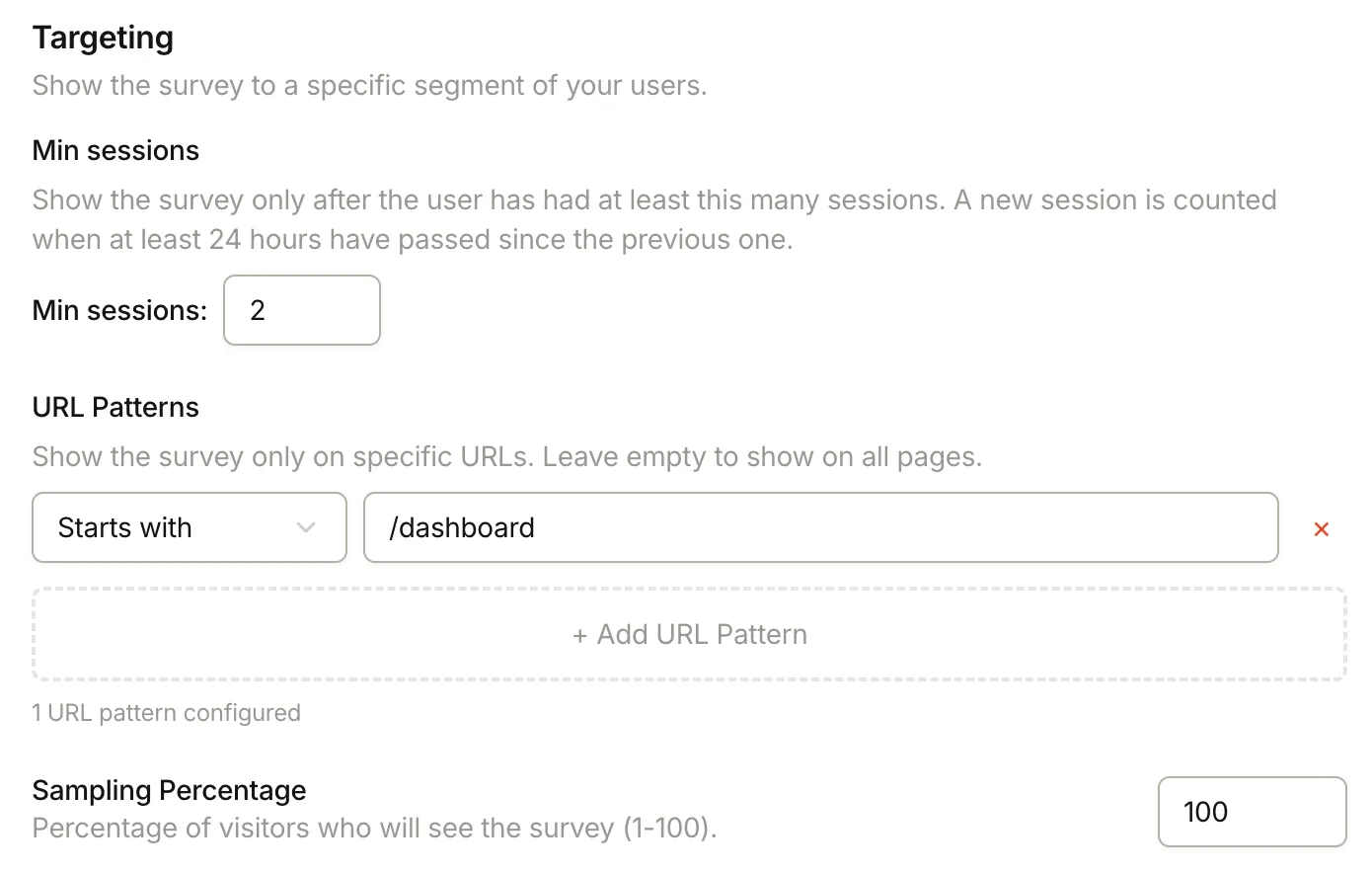
Section titled “Targeting settings”These controls define where the survey can run and how engaged a visitor must be before they qualify.
Minimum sessions
Section titled “Minimum sessions”A session in Pulseahead is counted on a new calendar day, at least 24 hours after the previous visit.
| Goal | Recommended setting |
|---|---|
| First-impression feedback | 1 session |
| Feature or workflow feedback | 3-5 sessions |
| Power-user feedback | 10+ sessions |
Visitors with more sessions tend to give more considered answers because they have real context with the product.
URL patterns
Section titled “URL patterns”URL patterns control which pages the survey is allowed to appear on. You can add multiple patterns; all of them are combined with OR logic (the survey can appear if any pattern matches the current URL).
| Match type | When to use |
|---|---|
| Contains | Match a keyword anywhere in the URL, e.g. pricing |
| Is exactly | Match one specific page, e.g. https://app.example.com/dashboard |
| Starts with | Match a section, e.g. /settings |
| Ends with | Match a path suffix, e.g. /success |
| Does not contain | Exclude pages, e.g. admin |
| Matches regex | Complex patterns that the other types cannot express |
Sampling
Section titled “Sampling”Available on Core and Pro.
Sampling sets the percentage of qualifying visitors who are actually offered the survey (1-100%). It runs after all other checks, so it reduces response volume without changing who is eligible.
Use sampling when you expect high traffic on a page and want to collect a representative subset without overwhelming users.
Audience settings
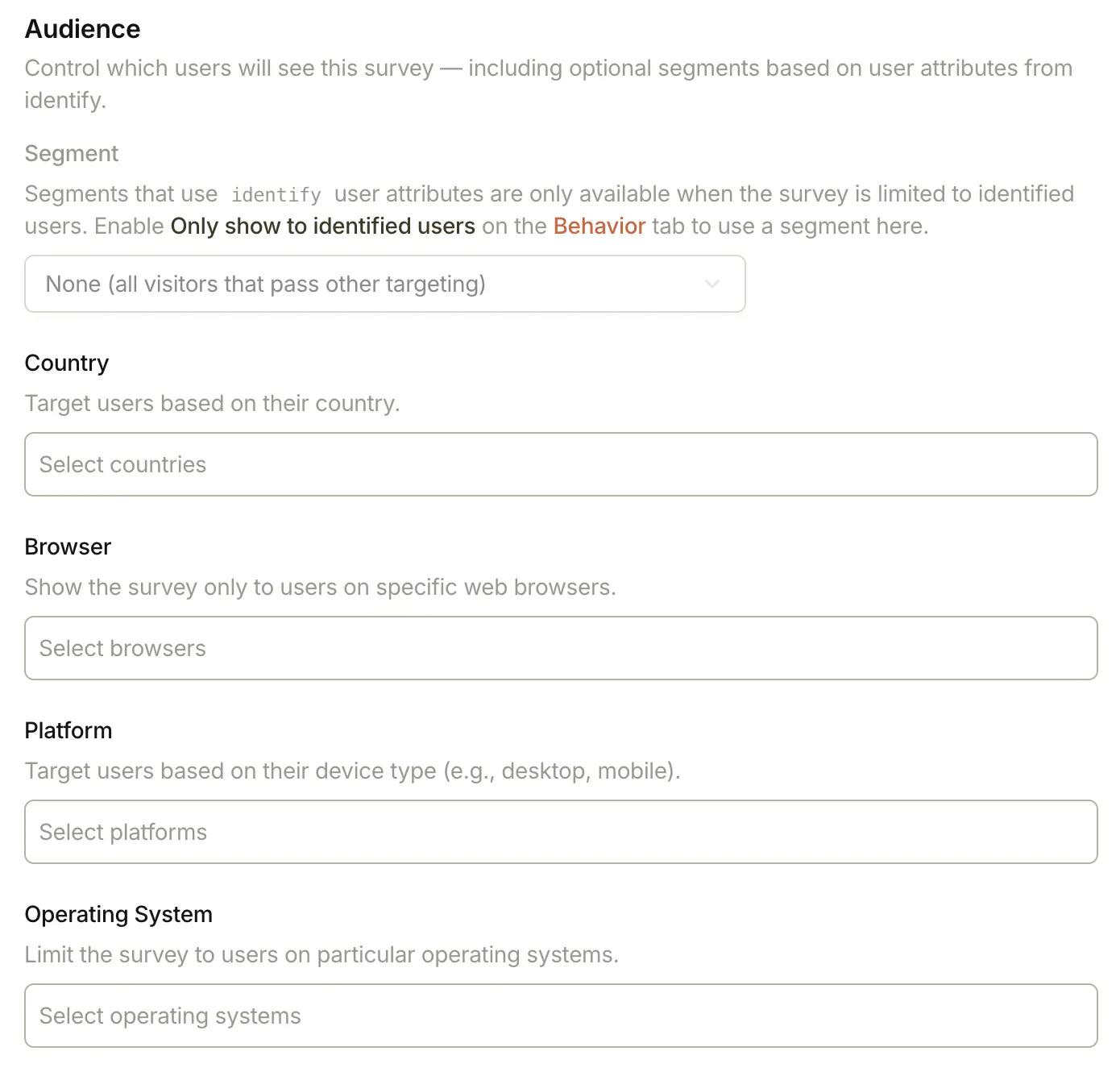
Section titled “Audience settings”These controls narrow who qualifies among visitors on matching pages.
Segments
Section titled “Segments”Available on Core and Pro.
Attach a named segment to restrict the survey to users whose identify traits match rules you define in the dashboard. The same segment can be reused across multiple surveys.
See User Segments for how to create and manage segments.
Country
Section titled “Country”Available on Core and Pro.
Limit the survey to visitors from specific countries, detected from their connection.
Common uses:
- Gather feedback on region-specific pricing or features
- Restrict surveys to markets where your support or compliance policy allows it
Platform, browser, and operating system
Section titled “Platform, browser, and operating system”Filter by device type (desktop vs. mobile), browser family, or operating system. Each filter is optional. When set, it must match alongside all other active rules.
Use these filters to:
- Isolate mobile-specific feedback when you ship a mobile redesign
- Reproduce a reported issue on a specific browser by targeting that cohort
Next steps
Section titled “Next steps”- Set when and how often surveys appear in Behavior & Frequency
- Build reusable
identify-based audiences in User Segments - Create or edit surveys from Ways to create a survey, then tune steps in Steps & Question Types