
Response Feed
The Response Feed is a single chronological list of activity across every live survey in your project. Use it for a quick daily scan or to read individual answers in context, without going into each survey separately. For score trends and breakdowns on one survey, open Survey Analytics from that survey’s card.
Opening the Response Feed
Section titled “Opening the Response Feed”In the sidebar, click Responses. You land on the All Responses view.
Reading responses
Section titled “Reading responses”Newest activity appears at the top. Each row is a card for one person’s survey session:
- Who: If the respondent was identified, the card shows their user ID (set up Identifying users so your app passes a stable ID). Click it to open User History; see User Timeline. Otherwise the card shows an anonymous label and history is not available.
- Survey: Which survey the answers belong to.
- When: A relative timestamp for when the session happened.
- Answers: Scores, text, and choices from that session.
- Tags and sentiment: Open-text answers can show response tags and sentiment when those signals are available.
The list loads 20 cards at a time. Use Previous and Next at the bottom to page through results. A count below the list shows how many responses you are viewing out of the total for your selected date range.
Tagging responses
Section titled “Tagging responses”You can assign custom tags to any response directly from the feed. This helps you organize open-ended feedback and track recurring themes (like feature-request or ux-friction).
To tag a response, click Add Tag on the response card and select from your existing tags. To manage your available tags, use the Response Tags page in the sidebar. See Response Tags for setup instructions and best practices.
Filtering responses
Section titled “Filtering responses”Use the controls at the top of the page to narrow the feed. Filters update the visible cards without changing the underlying survey responses.
You can filter by:
- Date range: Review feedback from a specific week, launch window, or support escalation.
- Tags: Focus on responses with one or more selected response tags.
- Untagged: Find open-text responses that still need review.
- Sentiment: Show positive, neutral, negative, or open-text feedback with no sentiment yet.
If no responses match the selected filters, Pulseahead shows an empty state for that filter set. Clear a filter to widen the result set.
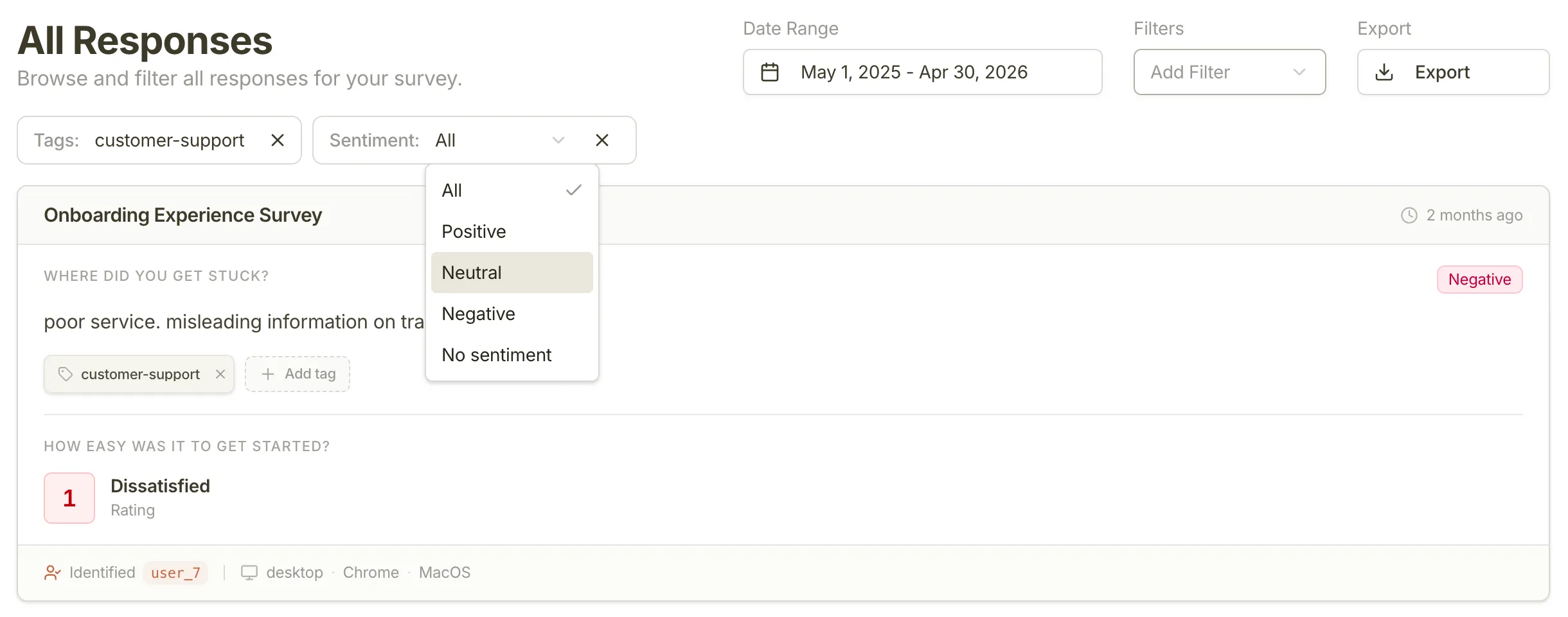
Filtering responses by tags and sentiment
Exporting responses
Section titled “Exporting responses”To export the feed to a spreadsheet:
- Set the Date range you want included.
- Click Export, then choose Export as CSV or Export as Excel.
The file includes answers and metadata Pulseahead collected for each session, such as the survey name and device details.
Alerts for new responses
Section titled “Alerts for new responses”The Response Feed is for reviewing responses inside Pulseahead. If you want matching answers delivered to Slack as they come in, set up Survey response alerts on the individual survey. The feed still gives you the complete cross-survey view.
More in Insights & Responses
Section titled “More in Insights & Responses”- Survey Analytics: charts and filters for one survey at a time.
- User Timeline: User History for one identified person.
- Response Tags: create and assign custom tags to organize feedback.
- Response Sentiment: understand and filter open-text feedback by sentiment.
- Survey response alerts: Slack delivery and notification rules.