
Connect Pulseahead to Slack
By connecting Pulseahead to Slack, you can route survey responses into the channels your team already monitors. For how survey response alerts work in general (timing, conditions, OR logic, operators), read Survey response alerts first. This page covers authorizing Slack and configuring Slack as a destination on a survey.
1. Authorize Pulseahead in Slack
Section titled “1. Authorize Pulseahead in Slack”Before you can receive alerts, you must first connect your Pulseahead project to your Slack workspace.
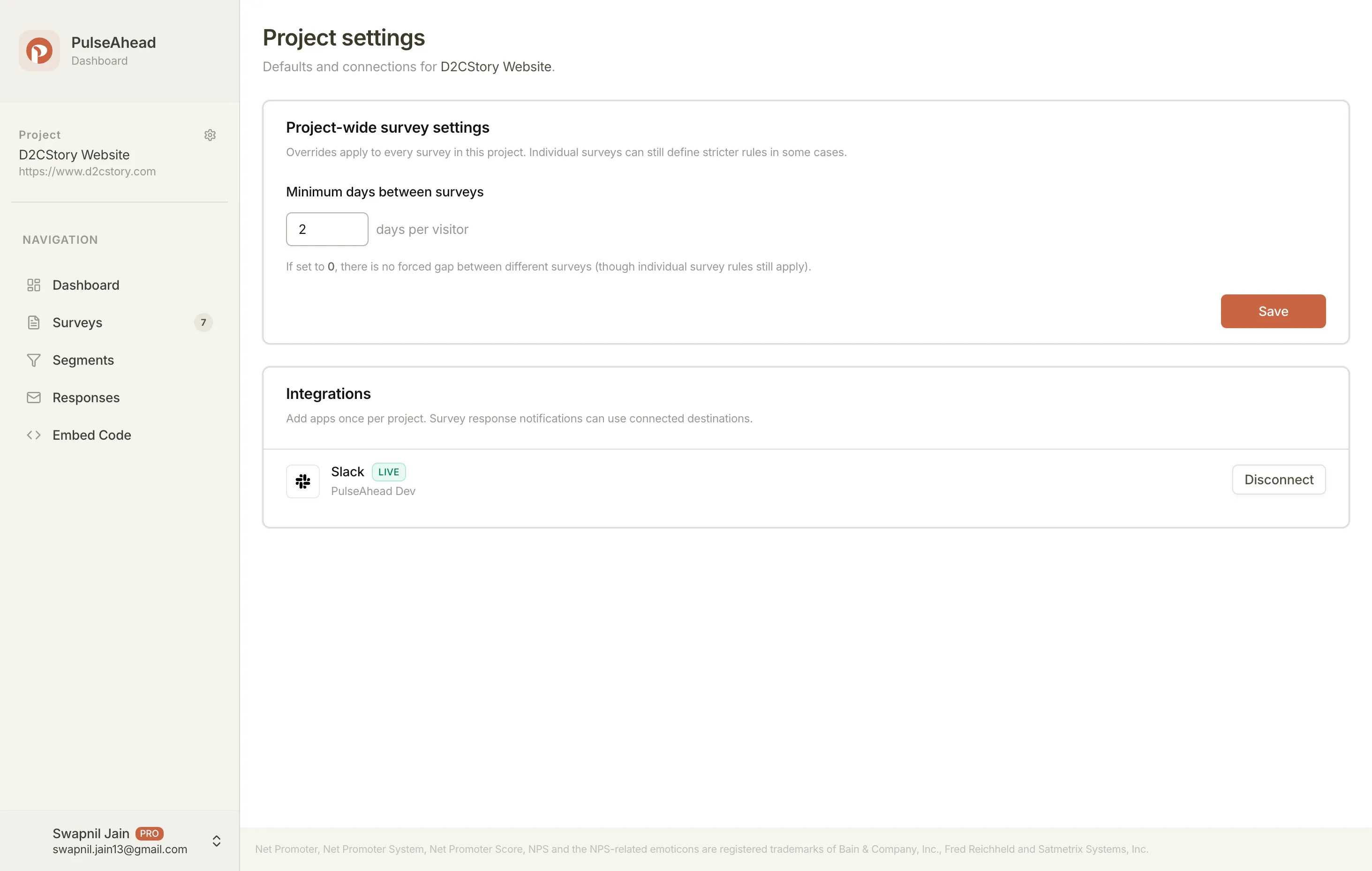
- Navigate to Project Settings in your Pulseahead dashboard.
- Go to the Integrations section.
- Locate the Slack integration and click Connect.
- You will be redirected to Slack’s authorization page. Select the workspace you want to connect.
- Review the permissions and click Allow.
Once authorized, you will be redirected back to Pulseahead, where your Slack workspace will now show as “Connected.”
2. Enable Notifications for a Survey
Section titled “2. Enable Notifications for a Survey”Notifications are configured on a per-survey basis. This allows you to route different feedback to different teams and Slack channels (for example, sending NPS scores to #customer-success and bug reports to #engineering).
- Navigate to the Surveys page in your Pulseahead dashboard.
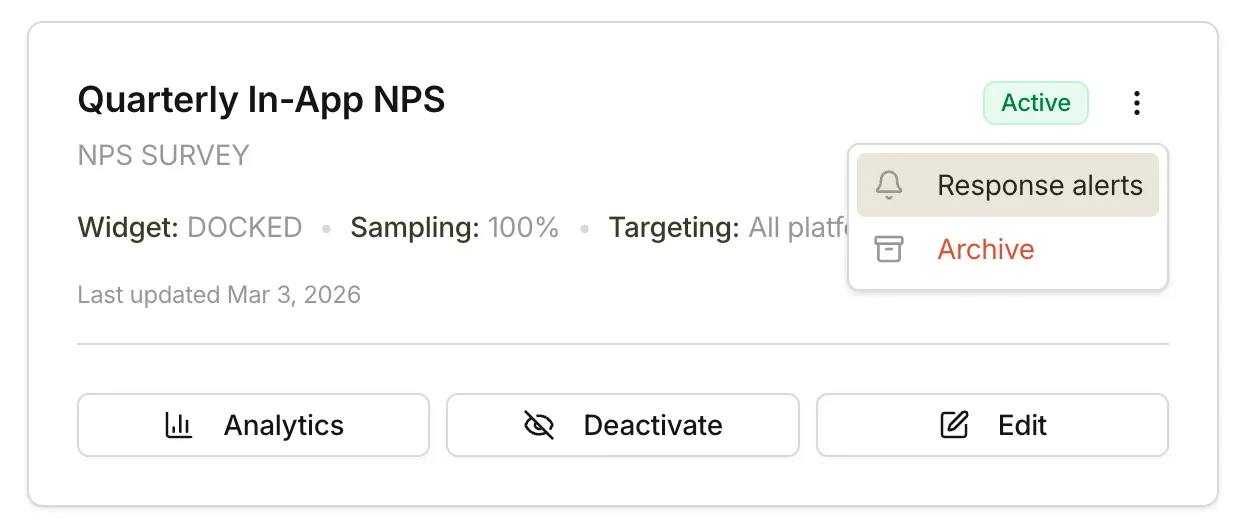
- Find the survey you want to configure, click the three-dot menu (⋮) on its card, and select Response Alerts.
- In the Response Alerts modal, toggle Enable Outgoing Notifications to ON.
This will reveal the configuration options for Where to notify and When to notify.
3. Configure Where to Notify
Section titled “3. Configure Where to Notify”Once notifications are enabled, you need to tell Pulseahead where to send the alerts.
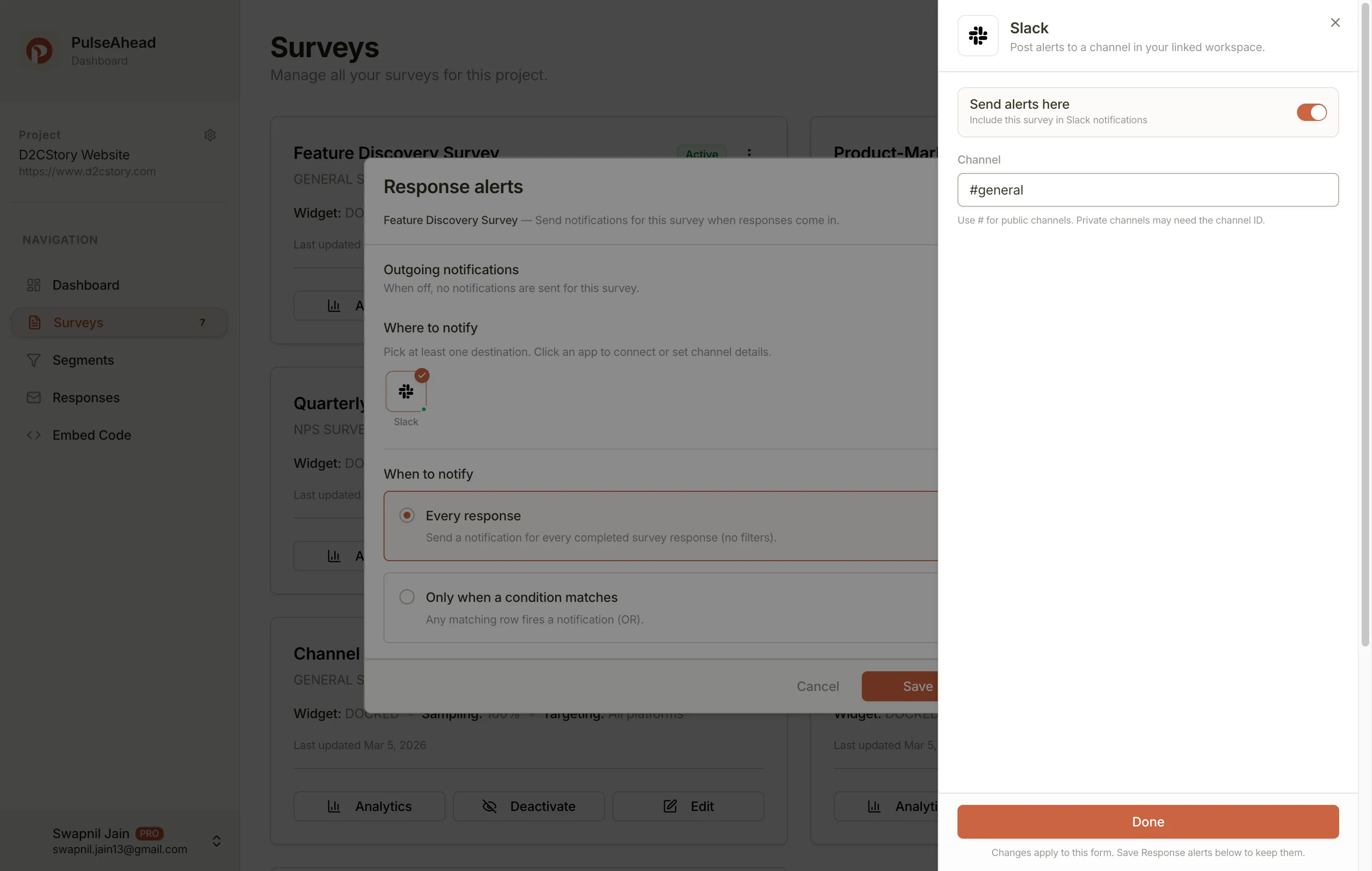
- Under the Where to notify section, select Slack.
- A drawer will open where you can specify the destination.
- Enter the Slack Channel name (including the
#, like#customer-feedback) or the channel ID (which you can find in the channel’s details in Slack).
4. Configure When to Notify
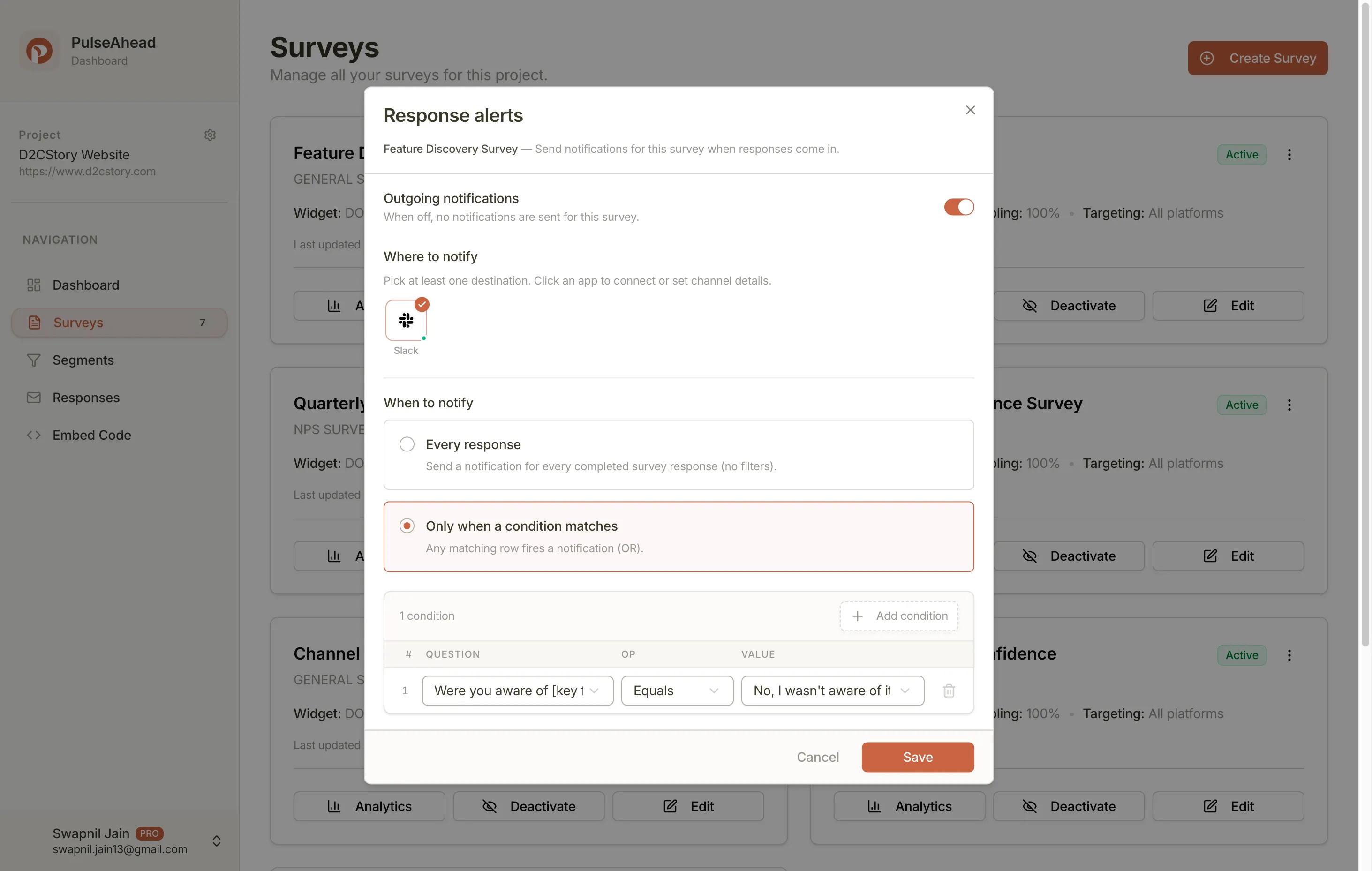
Section titled “4. Configure When to Notify”Under When to notify, choose Every Response or Only when a condition matches, and if you use conditions, pick a Step, an operator, and a value. Multiple conditions use OR logic (any match sends an alert). You can also choose whether alerts fire after each step or when the survey is completed; see Survey response alerts for the full behavior.
Note: The condition builder works similarly to the logic used in Adaptive Flow.
Best Practices for Notifications
Section titled “Best Practices for Notifications”To avoid notification fatigue, route general feedback (like all responses) to a muted or low-priority channel. For high-priority channels, use conditions to only alert the team when actionable feedback arrives, such as a detractor NPS score (for example Less than 7) or when a user explicitly requests a follow-up. This targeted approach pairs well with tracking partial responses if you want to capture drop-off signals early.
Troubleshooting
Section titled “Troubleshooting”- No alerts appearing: Check your conditions to ensure they aren’t too restrictive. Try removing all triggers to verify the connection first.
- Disconnected workspace: If your Slack token expires or permissions change, you may need to click Reconnect in your Project Settings.