
Adaptive Flow
Adaptive Flow is Pulseahead’s conditional branching engine. Instead of every respondent seeing the same fixed sequence, each step can route to a different next step depending on the answer given.
Common uses: showing a follow-up question to detractors only, skipping irrelevant screens, or routing to a review request after a high rating.
How it works
Section titled “How it works”Adaptive Flow is configured per step. Each step can have:
- A default next step — where the respondent goes when no conditions are matched.
- One or more flow conditions — rules that send the respondent to a specific step when a condition is met.
Pulseahead evaluates conditions in order. The first matching condition wins. If no conditions match, the default next step is used.
Setting up Adaptive Flow
Section titled “Setting up Adaptive Flow”- In the survey editor, open the Steps tab and select the step you want to branch from.
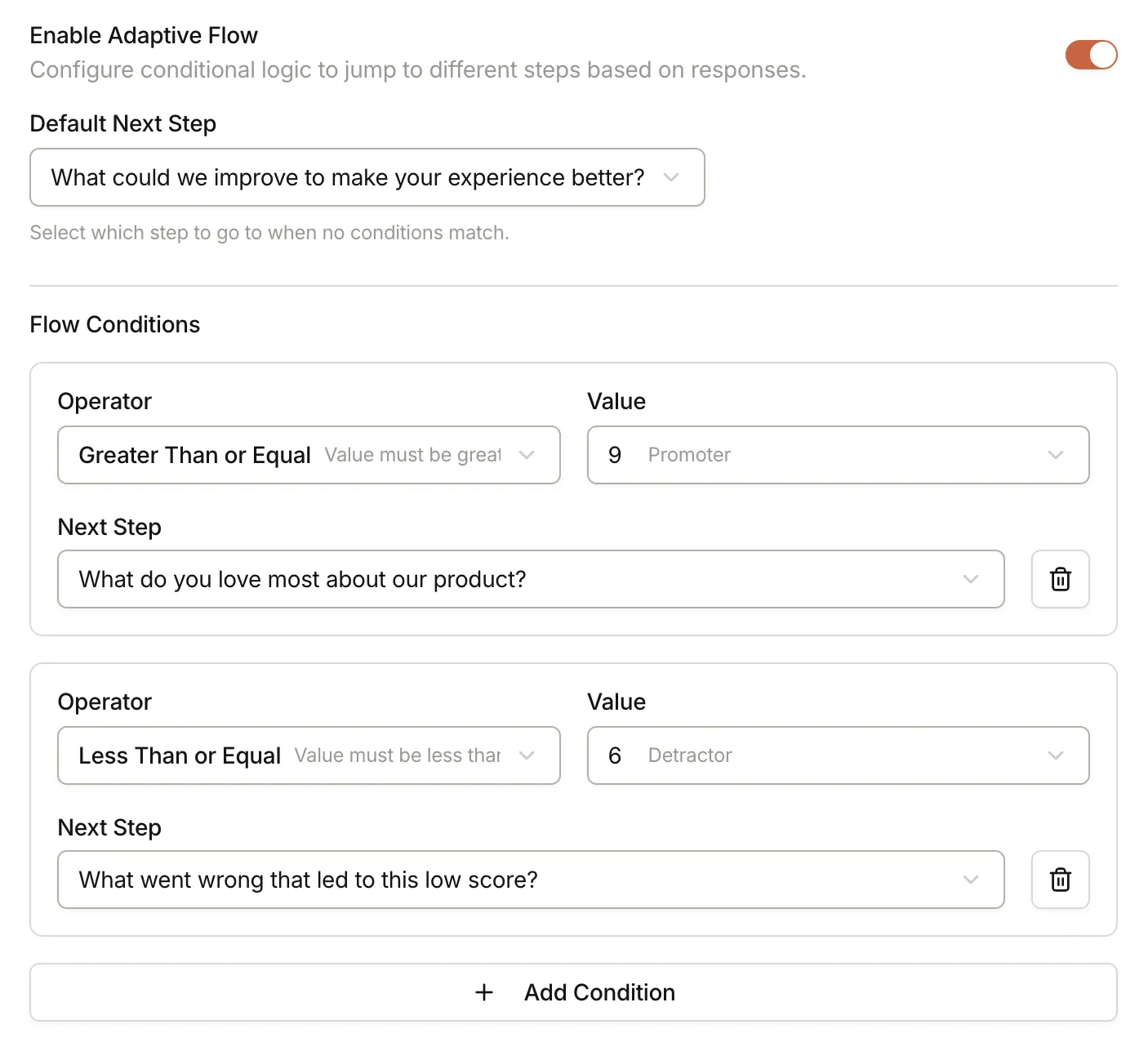
- Turn on Enable Adaptive Flow. This reveals the Default Next Step field and an Add Condition option.
- Set the Default Next Step to the step that should appear when no conditions match.
- Click Add Condition to create a rule. For each condition, set:
- Operator — the logic used to evaluate the response (for example, greater than, equals, contains).
- Value — the response value to check against.
- Next Step — the step to show when this condition is met.
- Repeat for each branch you need.
Supported operators by step type
Section titled “Supported operators by step type”| Step type | Supported operators |
|---|---|
| NPS | equals, not_equals, less_than, less_than_equal, greater_than, greater_than_equal |
| Rating | equals, not_equals, less_than, less_than_equal, greater_than, greater_than_equal |
| Choice Question | equals, not_equals, empty, not_empty, contains, does_not_contain |
| Long Text | equals, not_equals, empty, not_empty, contains, does_not_contain |
Example: routing NPS detractors to a follow-up
Section titled “Example: routing NPS detractors to a follow-up”A common pattern is to ask detractors for more detail while sending promoters to a review request.
Steps in the survey:
- NPS — “How likely are you to recommend [Product] to a friend or colleague?”
- Long Text — “We’re sorry to hear that. What can we do to improve?”
- Call to Action — “Glad to hear it! Would you mind leaving a review on G2?”
Adaptive Flow configuration on the NPS step:
| Segment | Condition | Next step |
|---|---|---|
| Detractors (0-6) | Rating less_than_or_equal 6 | Long Text |
| Promoters (9-10) | Rating greater_than_or_equal 9 | Call to Action |
| Passives (7-8) | (no matching condition) | Call to Action (default) |
Set Default Next Step to Call to Action so passives are handled automatically without needing an explicit condition.
- Always set a default next step. Without it, respondents who don’t match any condition may hit a dead end.
- Keep branching shallow. Deep or multi-level branching is hard to test and easy to break. Aim for one or two branch levels.
- Preview every path. Use the survey preview to walk through each response scenario and confirm the routing is correct.
- AI-generated surveys don’t include Adaptive Flow. If you used Generate with AI, you need to add and configure Adaptive Flow manually.
Next steps
Section titled “Next steps”Once your survey logic is set, customize its appearance, configure who sees the survey, and set when and how often it runs.
For how surveys are created before branching, return to Ways to create a survey or the full Steps & Question Types reference.