
Launch your first survey
This tutorial walks you through creating a survey from a template and making it live. It takes about five minutes.
Step 1: Create a survey from a template
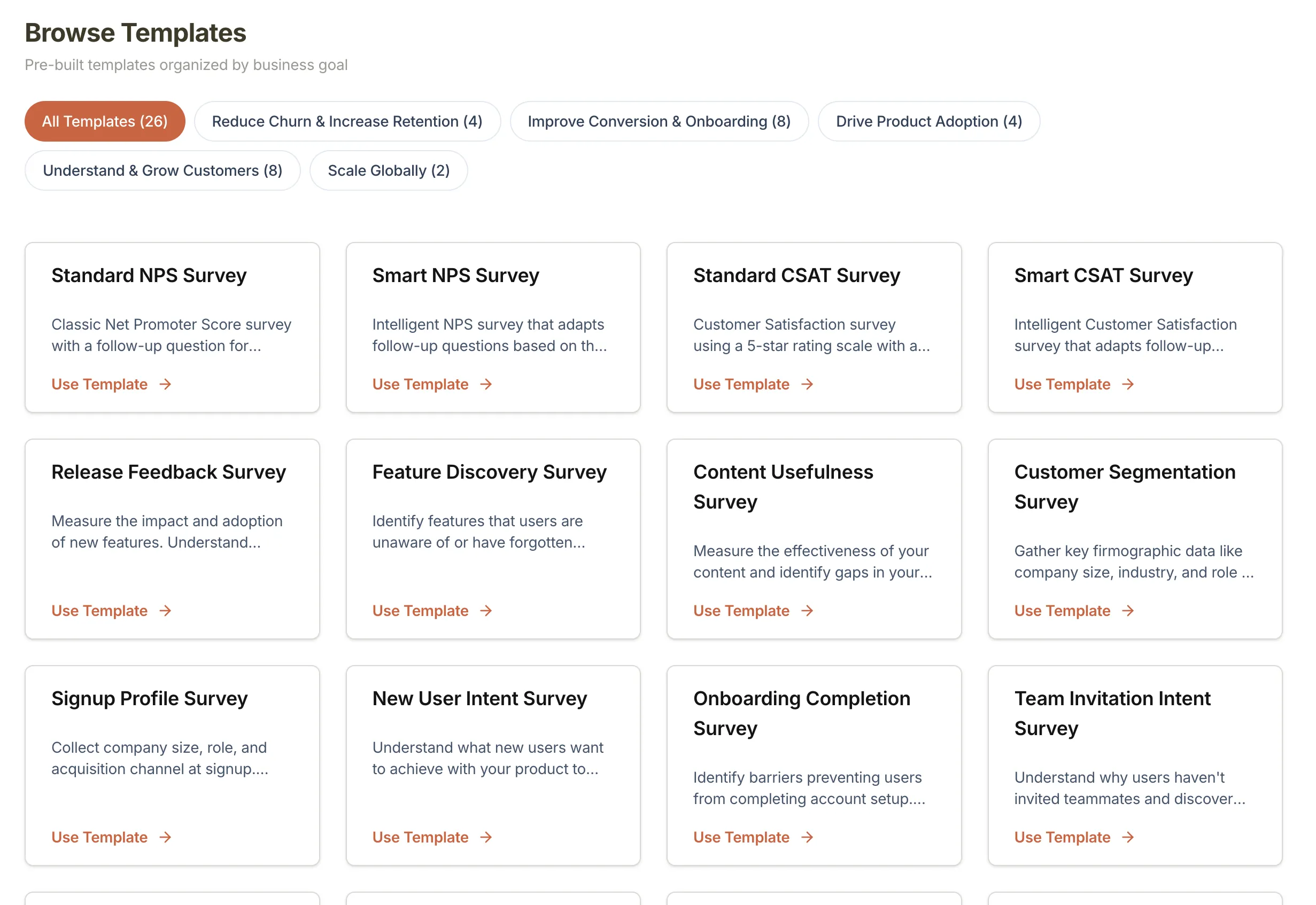
Section titled “Step 1: Create a survey from a template”- Open the Pulseahead dashboard and go to Surveys.
- Click Create Survey in the top-right corner.
- Browse the template library and select Smart NPS Survey.
- Pulseahead creates the survey with recommended steps and copy pre-filled.
Step 2: Review the survey steps
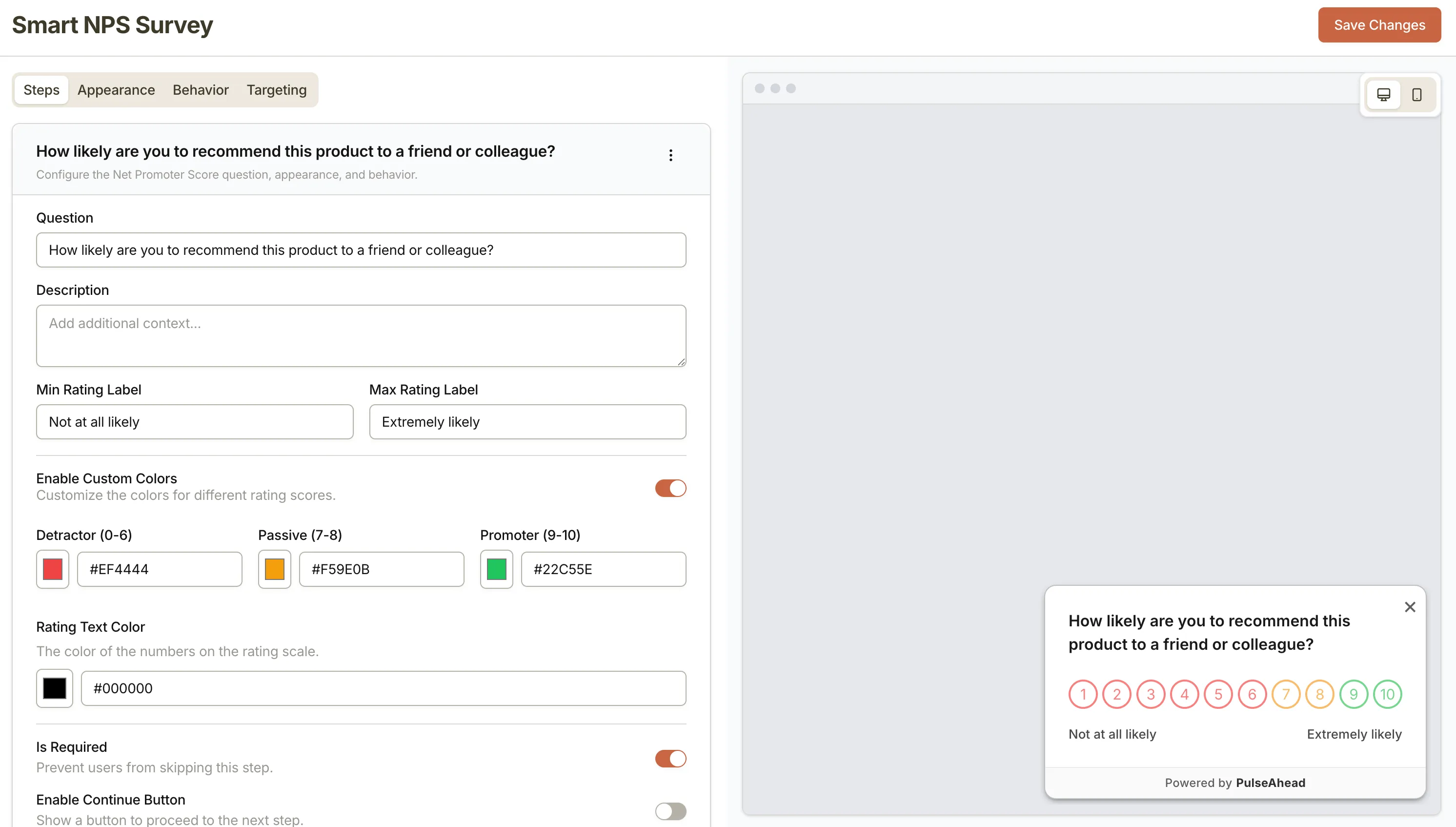
Section titled “Step 2: Review the survey steps”- In the survey editor, look at the builder canvas on the left.
- You will see an NPS step with the question “How likely are you to recommend us?”
- Below it, you will see follow-up steps using Adaptive Flow. For example, users who give a low score are asked what went wrong, while users who give a high score are prompted to leave a review.
- Read through the step text. The defaults are designed to work well without changes, but you can edit any question to match your product’s tone.
Step 3: Configure targeting and behavior
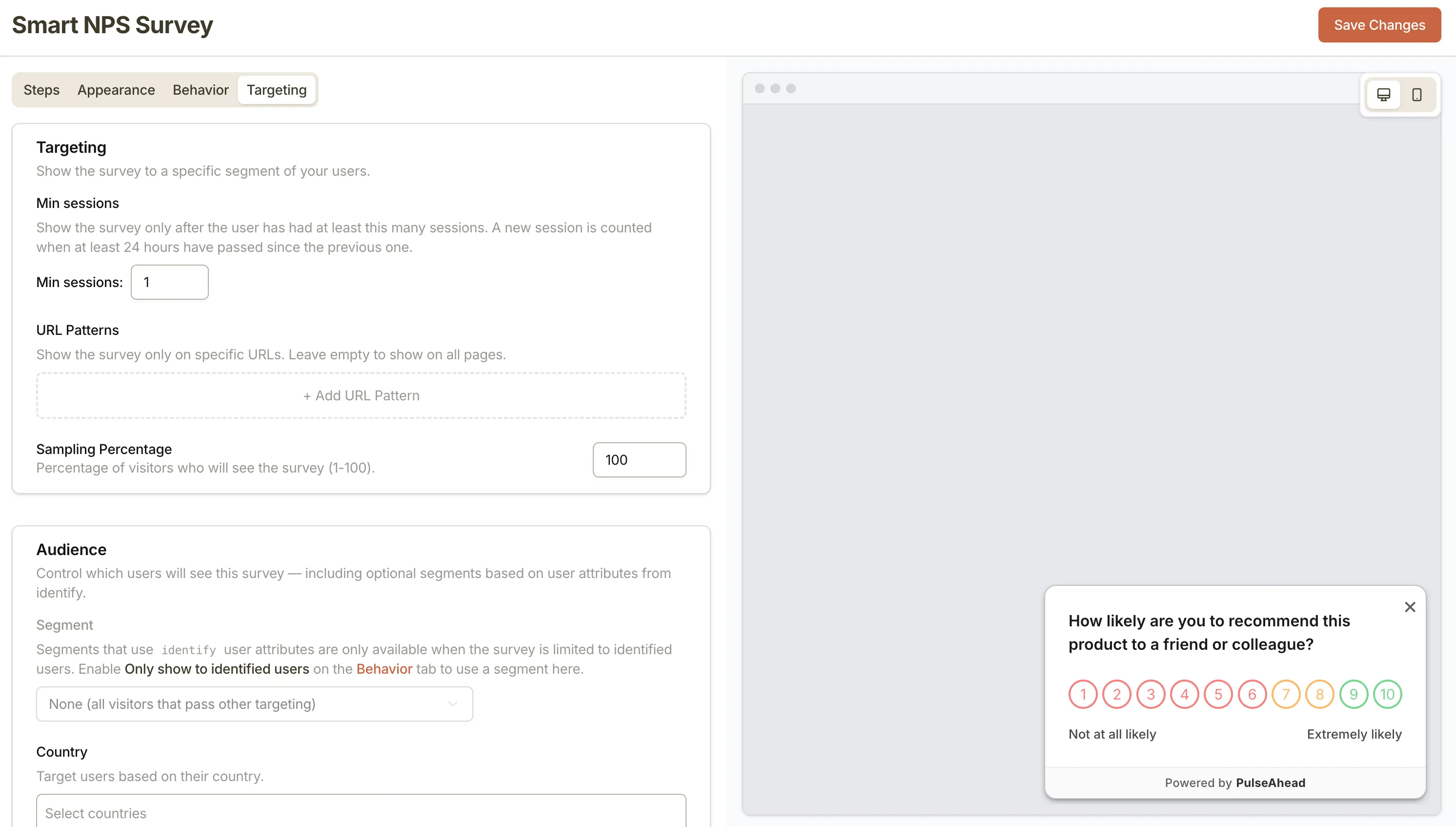
Section titled “Step 3: Configure targeting and behavior”Before going live, confirm who will see this survey and when.
- Click the Targeting tab in the survey editor.
- Review the audience settings. For an NPS survey, it is common to set Min sessions to
3so brand-new users are not asked for a recommendation before they have had a chance to use the product. - Click the Behavior tab.
- Review the timing and frequency settings. For a recurring NPS, you might set the resurvey interval to 90 days so the same user is not surveyed too often.
Step 4: Publish the survey
Section titled “Step 4: Publish the survey”- Click Save in the top-right corner.
- Toggle the survey status from Draft to Active.
The survey is now live. Pulseahead will display it to users who match your targeting rules.
What’s next?
Section titled “What’s next?”Once responses start coming in, you can view them in the Response Feed. If you want to get more out of Pulseahead without building surveys from scratch, explore the SaaS Survey Pack for a complete set of pre-configured feedback flows.